> For the complete documentation index, see [llms.txt](https://ccat.gitbook.io/cyber-sec/llms.txt). Markdown versions of documentation pages are available by appending `.md` to page URLs; this page is available as [Markdown](https://ccat.gitbook.io/cyber-sec/how-stuff-works/ci-cd-for-a-pentest-vm.md).
# CI/CD for a Pentest VM
Automating the continuous deployment of a virtual pentest machine using Proxmox, Packer, Terraform, Ansible and GitLab.
## What on earth?
Setting up a new pentest VM for every project is tedious, time-consuming and error-prone. Thus, I've set out to build from scratch an automation that will:
* Provision a release of Kali as VM template (Packer - IaC)
* Provision a staging and production version (Terraform - IaC)
* Modify the VM via simple changes in GitLab (GitLab + Ansible - CI/CD Pipeline)
* Do all that on a Proxmox server
I started out documenting the initial minimum setup and combination of Packer, Terraform, Gitlab and Ansible. Over time I've repeatedly improved upon some components and updated this blog accordingly. For example, the first version used hardcoded credentials and had not much functionality in the pipeline.
By now, the examples include a complete end-to-end pipeline that fetches the latest Kali release, configures it, runs Ansible on it and releases it as a VMware-ready virtual machine via SFTP.
As Proxmox (and other software) will continue to evolve, examples will break over time but the architecture and overall setup should remain valuable for you as an orientation. Though I do not cover every consideration, this guide will provide you with all the basics required to build your own automation pipeline.
Should you choose to follow this guide, make sure to always read official documentation for up-to-date and best practice recommendations!
{% hint style="info" %}
In this guide, we won't look at how to install Proxmox or GitLab.
{% endhint %}
## Overview
{% hint style="info" %}
Use this chapter as a reference to keep in mind what components interact with eachother.
{% endhint %}
## Set Up a Base VM (Gitlab Runner)
{% hint style="info" %}
The base VM we will call `gitlab-runner` as it will perform all actions based on the instructions of a Pipeline that we are going to setup later. It is the one system that we will have to maintain manually. We could automate that too but that's out of scope for now.
{% endhint %}
1. In Proxmox, create a new VM (top right corner "Create VM") inside your favourite resource pool
I will be using a [Debian](https://www.debian.org/CD/netinst/#netinst-stable) here but you are free to use whatever you want for your base VM. I will name it `gitlab-runner` and give it an ID of `420`.
1. Supply enough disk space to allow conversion of VM backups later (\~200 GB will suffice)
2. 8192 MiB RAM suffice (though more is better)
3. 4 sockets, 4 cores
4. Choose a network config that will provide your VM with internet access and access to GitLab
Beware of proxy setups - this can cause you a serious amount of trouble later on. It's possible, but a pain to maintain, trust me. Also, packet inspection may flag and block Kali/Tool downloads, so take that into account early during setup.
2. Next, complete the ISO installation setup
1. The `hostname` will be `gitlab-runner`
2. Do not add a `root` user (leave the password blank to disable it)
3. Add a normal user (I will call it `user`) and set a strong password
Consider setting up a KeePass database for this project now because you will create more credentials and secrets.
3. Once the VM is ready, we will need to install a few things
```bash
# Install Packer and Terraform: https://developer.hashicorp.com/packer/install
wget -O - https://apt.releases.hashicorp.com/gpg | sudo gpg --dearmor -o /usr/share/keyrings/hashicorp-archive-keyring.gpg
echo "deb [arch=$(dpkg --print-architecture) signed-by=/usr/share/keyrings/hashicorp-archive-keyring.gpg] https://apt.releases.hashicorp.com $(lsb_release -cs) main" | sudo tee /etc/apt/sources.list.d/hashicorp.list
sudo apt update && sudo apt install packer terraform
# Install the gitlab-runner package
sudo apt install git curl
curl -L "https://packages.gitlab.com/install/repositories/runner/gitlab-runner/script.deb.sh" | sudo bash
sudo apt install gitlab-runner # installs a gitlab-runner user
# We will get back to that gitlab-runner user in a later
# section called "Create a GitLab Runner".
# Install ansible and ansible-lint
sudo apt install pipx sshpass # sshpass is required for Ansible to use ssh-password authentication
sudo su gitlab-runner # Important: switch to the installed gitlab-runner user
pipx ensurepath
pipx install --include-deps ansible
# Next we want to install/inject ansible-lint into the same pipx venv!
# We do this because ansible-lint needs access to the same collections.
pipx inject --include-apps ansible ansible-lint# If you later identify additional packages that you need
# you install them the same way.
# Updating ansible (and all injected packages) in the
# future can now be achieved with
pipx upgrade ansible --include-injected
source ~/.bashrc # to test the "ansible" command right away
# Make sure to exit the gitlab-runner session before continuing
exit
# Install VMA and qemu utils (for extracting and converting proxmox packups)
# Make sure that the two commands match the debian release (e.g. bookworm)
sudo apt install qemu-utils
echo "deb http://download.proxmox.com/debian/pve bookworm pve-no-subscription" | sudo tee /etc/apt/sources.list.d/pve-install-repo.list
sudo wget http://download.proxmox.com/debian/proxmox-release-bookworm.gpg -O /etc/apt/trusted.gpg.d/proxmox-release-bookworm.gpg
sudo apt update
# We could simply install it, but we really just need one binary (vma)
apt download pve-qemu-kvm
dpkg --fsys-tarfile ./pve-qemu-kvm_*.deb | tar xOf - ./usr/bin/vma > ./vma
sudo mv ./vma /usr/bin/vma
sudo chmod +x /usr/bin/vma
# Try executing `vma` and install the libraries that are missing, here they were:
sudo apt install libproxmox-backup-qemu0 libiscsi7
# Test if vma works by running
vma extract
rm ./pve-qemu-kvm_*.deb
# Install SSH server (for distribution of the final pentestvm)
sudo apt install openssh-server
# Install jq (required for parsing API responses in CI-scripts)
sudo apt install jq
```
{% hint style="success" %}
That's it for the installation part. We will continue to make some changes and add things but I recommend you **create a snapshot** of that VM now, so you can rollback in case anything goes wrong.
{% endhint %}
## Additional Base VM Preparations
Right now we've laid the groundwork for a VM that will run our GitLab pipeline jobs. However, we need a few more things for later.
1. Certificates
In case you host your own GitLab instance, consider setting up a proper certificate and install the CA on the `gitlab-runner`:
```bash
# In case your environment requires it:
# Install the root certificates for Proxmox and GitLab
# You can achieve this by exporting the root CA via a browser (URL bar, lock icon)
# Download -> "PEM (cert)"
sudo mv custom-ca.crt /usr/local/share/ca-certificates/custom-ca.crt
sudo update-ca-certificates
```
2. Configure Proxmox with a proper backup storage\
I will not cover the setup of a new storage. You require a storage that's large enough to hold at least one or two VM backups (200 GB will suffice).\
\
In Proxmox -> Server View -> Datacenter -> Storage, look for:
1. Content must contain `Backup`
2. Enabled must say `Yes`
3. Note down the `Path/Target` value
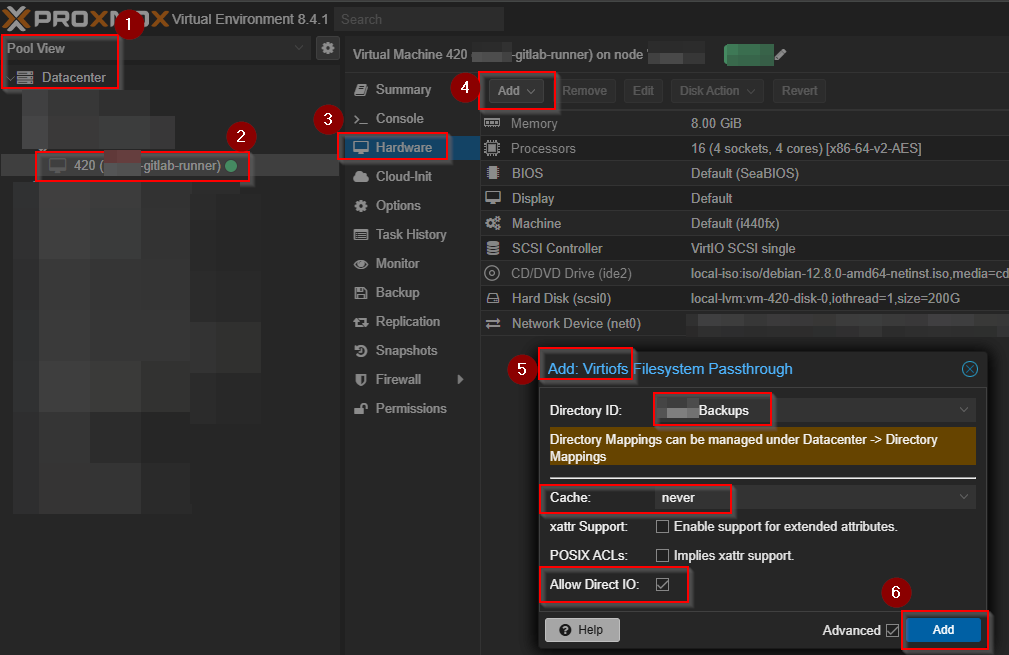
3. Then we configure a "Directory Mapping" that will mirror the backup directory into the runner VM
\
In Proxmox -> Server View -> Datacenter -> Directory Mappings -> Add:
1. Name: chose any
2. Path: this must match the name of the backup storage from the step before
4. Next we add a Virtiofs to our `gitlab-runner` to include that directory mapping
1. Make sure to set `Cache` to `never` or you may experience disk exhaustion over time
5. Restart the runner VM to activate the new Virtiofs
6. Now we configure this backup directory and also add a second directory that will serve us for hosting purposes (it will contain the latest pentest vm release)
```bash
sudo mkdir /mnt/backups
# To simply test whether ataching the storage works:
# Assuming that "Backups" was the name of the Directory Mapping:
sudo mount -t virtiofs Backups /mnt/backups/
# If you would create manual backups to that storage now, you should see
# them pop up in the gitlab-runner VM. We will use that so we can trigger
# backup jobs in our GitLab pipeline and then convert the backup locally to
# other VM formats.
# To persist the mount
echo "Backups /mnt/backups virtiofs defaults,nofail 0 0" | sudo tee -a /etc/fstab
# Reboot (either now or at the end)
sudo reboot now
# Now we also create a release directory (name implies everything)
sudo mkdir /release
# Create a special user who is allowed to do *nothing* but to download from /release
sudo useradd sftp -M -s /bin/false # No home dir, no logon
# In my setup I delete the password so everyone can download the release
sudo passwd -d sftp # maybe you want to set a password instead here
# Finally create another directory and give the gitlab-runner access to
# write to it (sftp must be able to access it)
sudo mkdir /release/images/
sudo chown gitlab-runner:sftp /release/images
```
7. To avoid the `sftp` user from being abused, we make sure that the SSH config in `/etc/ssh/sshd_config` contains the following lines.\
Only use the first line if you deleted the `sftp` user password intentionally (like in the example above).
```
PermitEmptyPasswords yes
KbdInteractiveAuthentication no
UsePAM yes
AllowUsers sftp
Subsystem sftp internal-sftp
Match User sftp
ChrootDirectory /release
ForceCommand internal-sftp -d /
AllowTcpForwarding no
AllowAgentForwarding no
X11Forwarding no
```
8. Run `sudo systemctl restart ssh` to enable the changes
Now, only `sftp` will be able to connect with `sftp sftp@` and nobody else
9. Another thing that you may or may not benefit from:\
Setting a static IP address for the `gitlab-runner` VM. This way you make sure that downloading the latest release is always possible with the same command later. If you got DNS setup correctly, you would not need this and work with hostnames.\
\
To configure a static IP, edit `/etc/network/interfaces`:
```
auto lo ens18
iface lo inet loopback
iface ens18 inet static
address 172.30.198.42
netmask 255.255.255.0
gateway 172.30.198.1
```
10. Activate changes with `sudo reboot now` and confirm with `ip a`
## Provision Kali with Packer
Packer is a tool for creating virtual images. Here, we will use it to automate downloading a Kali release from the official website, installing it in a VM and then creating a Proxmox template from it.
{% hint style="warning" %}
At the moment of writing, neither Packer nor Proxmox seem incredibly stable. Here, I am working with Proxmox 8.4.1 (edit: guide updated for 9.1.4), Packer 1.12.0 (edit: guide updated for 1.14.3) and the Packer Proxmox plugin 1.2.2 (edit, guide updated for 1.2.3). While many things work just perfectly, keep in mind that small or minor changes in either of these tools can break everything and result in headache-inducing rabbit holes of troubleshooting. On that note, I reported [a bug in the Packer Proxmox plugin](https://github.com/hashicorp/packer-plugin-proxmox/issues/321) that you may encounter too.
{% endhint %}
1. Before we dive into Packer, we want to create an API user in Proxmox that Packer (and later also Terraform) can use to orchestrate any changes, like creating and deleting VMs
1. Navigate to Datacenter > Permissions > Roles
2. Create a new role and call it `APIProvision` for example (the name cannot start with `PVE`)
3. We want to assign permissions to this role, that the API only really requires:
```shellscript
# Feel free to experiment
# In case of missing permissions Proxmox will throw API errors
# They may just not always hint at a permission problem, just keep that in mind
Datastore.Allocate
Datastore.AllocateTemplate
Datastore.Audit
Datastore.AllocateSpace
Pool.Allocate
Pool.Audit
SDN.Use
Sys.Audit
Sys.Console
Sys.Modify
Sys.PowerMgmt
VM.Allocate
VM.Audit
VM.Backup
VM.Clone
VM.Config.CDROM
VM.Config.CPU
VM.Config.Cloudinit
VM.Config.Disk
VM.Config.HWType
VM.Config.Memory
VM.Config.Network
VM.Config.Options
VM.Console
VM.GuestAgent.Unrestricted
VM.Migrate
VM.PowerMgmt
VM.Replicate
VM.Snapshot
VM.Snapshot.Rollback
```
4. Next, create a user under Datacenter > Permissions > Users > Add (with no groups) and store the password in your KeePass - you should not see/use this password ever again.
5. Next, navigate to Datacenter > Permissions > API Tokens and select `Add`
6. Select the user we created and make sure that `Privilege Separation` is checked. When the checkbox is ticked, the API token will not inherit permissions from the user.
7. Set any token ID and click `Add`
8. You will now see the complete token ID (i.e. `!`) and the API secret - store both of them securely in your KeePass
9. Lastly, go to Datacenter > Permissions and select `Add`
10. Here, we merge the API token, the role, and a resource pool
Select the created role, the created API token and the resource pool where you want to provision your systems - I will use a resource pool called `Infrastructure` that I had created under Permissions > Pools
{% hint style="info" %}
If you loose your API key, you will have to create a new API token. Delete the previous one and reuse the role.
{% endhint %}
2. Now we create our Kali Linix packer script `kali.pkr.hcl`
The first item in the file defines the plugin we require to talk to the Proxmox API ([documentation](https://developer.hashicorp.com/packer/integrations/hashicorp/proxmox/latest/components/builder/iso)).
```hcl
packer {
required_plugins {
proxmox = {
version = ">= 1.2.3" # (you may want to check for updates)
source = "github.com/hashicorp/proxmox"
}
}
}
```
Now we want to define some variables, so that we keep valuable secrets out of the code:
```hcl
# Variables
# Supplied by GitLab pipeline
variable "proxmox_api_user" {
type = string
sensitive = false
}
# Supplied by GitLab pipeline
variable "proxmox_api_token" {
type = string
sensitive = true
}
# Supplied by GitLab pipeline
variable "kali_iso_url" {
type = string
sensitive = false
}
# Supplied by GitLab pipeline
variable "kali_iso_sha256" {
type = string
sensitive = false
}
# Supplied by GitLab pipeline
variable "template_vm_id" {
type = string
sensitive = false
}
```
Then follows the description of exactly what we want to build with that plugin.\
Consult the linked documentation for an explanation of each field (these fields may change over time).
```hcl
# source
source "proxmox-iso" "kali-template" {
# Proxmox connection settings
proxmox_url = "https:///api2/json"
username = "${var.proxmox_api_user}" # ""
token = "${var.proxmox_api_token}" #
# Image metadata
node = "pve"
pool = "Infrastructure" # Packer-promox does not support nested pools in 1.2.2
vm_id = "${var.template_vm_id}"
vm_name = "kali-template"
tags = ""
template_description = "Template created with Packer - ${timestamp()} UTC"
# ISO source
boot_iso {
iso_url = "${var.kali_iso_url}"
iso_checksum = "sha256:${var.kali_iso_sha256}"
iso_storage_pool = "local-iso"
iso_download_pve = true
unmount = true
}
# VM settings
## Disk
## 30G should be enough for devel systems
## prod can get more space via Terraform
disks {
type = "scsi"
disk_size = "30G"
storage_pool = "local-lvm"
}
## CPU
cores = "2"
sockets = "2"
## Memory
memory = 8192
## Network
network_adapters {
model = "virtio"
bridge = ""
vlan_tag = ""
firewall = true
}
# Enable Cloud Init
cloud_init = true
cloud_init_storage_pool = "local-lvm"
qemu_agent = true
# SSH
ssh_timeout = "2h" # maximum time we allow for the boot+installation process
ssh_username = "kali"
ssh_password = "kali"
# Preseed Kali via HTTP
# See https://gitlab.com/kalilinux/recipes/kali-preseed-examples
http_directory = "boot-cfg"
boot_command = [
# Switch to boot menu
"",
# Utilize the preseed file
"/install.amd/vmlinuz vga=788 auto=true priority=critical url=http://{{ .HTTPIP }}:{{ .HTTPPort }}/kali-preseed.cfg initrd=/install.amd/initrd.gz --- quiet",
""
]
}
build {
name = "proxmox" # you can choose one
sources = ["sources.proxmox-iso.kali-template"] # put together from the source
# Post installation steps
provisioner "shell" {
inline = [
# Clean up the VM before turning it into a template
"sudo truncate -s 0 /etc/machine-id",
# Create swapfile
"sudo dd if=/dev/zero of=/swapfile bs=1G count=4",
"sudo chmod 600 /swapfile",
"sudo mkswap /swapfile",
"echo '/swapfile none swap sw 0 0' | sudo tee -a /etc/fstab",
# Setup and configure cloud-init
# https://pve.proxmox.com/wiki/Cloud-Init_FAQ
"echo 'datasource_list: [ NoCloud, ConfigDrive ]' | sudo tee /etc/cloud/cloud.cfg.d/99_pve.cfg",
# Revert changes to the sudoers file that made sudo in this SSH session possible
# (See the following preseed config file)
"sudo sed -i '/(^Defaults.*!requiretty$|^kali.*ALL$)/d' /etc/sudoers",
]
}
}
```
{% hint style="info" %}
Theory for the upcoming section: **Preseeding** is one way (of many) for automating OS installations. It consists of a file that contains all the answers to the questions we would otherwise see in a live install. Debian has some good documentation [here](https://wiki.debian.org/DebianInstaller/Preseed).
Another method is `cloud-init` which provides a way of configuring basic system configuration such as credentials and IP configuration via a standard interface. Proxmox supports `cloud-init` and allows you to set these configurations easily via the GUI.
The default Kali ISO is perfect for customization with preseeding but does not come with `cloud-init` installed. For cloning and easy configuration later on, we do want `cloud-init` though. Thus, we install and activate it manually (alternatively, you may also experiment with the Kali Generic Cloud image).
{% endhint %}
3. Now, as mentioned previously, we create a folder called `boot-cfg` in the current directory
4. In that directory, we create the `kali-preseed.cfg` file, this one is based on the [Kali example](https://gitlab.com/kalilinux/recipes/kali-preseed-examples)
```bash
# Locale and keyboard
d-i debian-installer/locale string en_US
d-i debian-installer/language string en
d-i debian-installer/country string US
d-i debian-installer/locale string en_US.UTF-8
d-i localechooser/shortlist select US
d-i localechooser/preferred-locale select en_US.UTF-8
d-i localechooser/languagelist select en
d-i keyboard-configuration/xkb-keymap select us
# Disable popularity-contest
popularity-contest popularity-contest/participate boolean false
# Network
d-i netcfg/choose_interface select auto
d-i netcfg/get_hostname string kali-template
d-i netcfg/get_domain string unassigned-domain
d-i netcfg/wireless_wep string
# Mirrors
d-i mirror/country string manual
d-i mirror/http/hostname string http.kali.org
d-i mirror/http/directory string /kali
d-i mirror/http/proxy string
# User
d-i passwd/user-fullname string kali
d-i passwd/username string kali
d-i passwd/user-password password kali
d-i passwd/user-password-again password kali
# Date
d-i clock-setup/utc boolean true
d-i time/zone string US/Eastern
d-i clock-setup/ntp boolean true
# Partitioning
# (create one big partition, disable swap)
d-i partman-auto/method string regular
d-i partman-lvm/device_remove_lvm boolean true
d-i partman-md/device_remove_md boolean true
d-i partman-lvm/confirm boolean true
d-i partman-auto/expert_recipe string \
single-part :: \
5000 10000 -1 $default_filesystem \
$primary{ } \
$bootable{ } \
method{ format } \
format{ } \
use_filesystem{ } \
$default_filesystem{ } \
mountpoint{ / } .
d-i partman-auto/disk string /dev/sda
d-i partman/confirm_write_new_label boolean true
d-i partman/choose_partition select finish
d-i partman/confirm boolean true
d-i partman/confirm_nooverwrite boolean true
d-i partman-partitioning/confirm_write_new_label boolean true
# We setup a swap partition in the packer script
d-i partman-basicfilesystems/no_swap boolean false
#Packages
tasksel tasksel/first multiselect standard,core,desktop-kde,meta-default
d-i pkgsel/include string coreutils qemu-guest-agent cloud-init
# Grub
d-i grub-installer/only_debian boolean true
d-i grub-installer/with_other_os boolean false
d-i grub-installer/bootdev string /dev/sda
d-i finish-install/reboot_in_progress note
# Post Install
d-i preseed/late_command string \
echo "kali ALL=(ALL) NOPASSWD: ALL" >> /target/etc/sudoers; \
sed -i "s/env_reset/env_reset\nDefaults\t!requiretty/" /target/etc/sudoers; \
in-target systemctl enable ssh
```
5. With this config we can change the hostname, username, password, install packages such as `cloud-init`, activate passwordless SSH for the Packer script etc.
The `d-i preseed/late_command` is documented [here](https://www.debian.org/releases/stable/i386/apbs05.en.html) and allows us to enable SSH and prepare `sudo` so that Packer can login via SSH once the setup is finished to perform final clean up tasks.
6. With everything prepared, we must run the following command once
```bash
packer init kali.pkr.hcl
```
This downloads the Proxmox plugin we specified in the beginning.
7. From here on, we can use
```bash
packer validate kali.pkr.hcl # to check for syntax errors, and
packer build kali.pkr.hcl # to provision the kali template
# The build command will download (and cache) the specified ISO
# provision a VM, install the OS, run the build steps, shut the VM down
# and create a template from it.
# If we want another release, we just update the URL.
# Note that the above commands only work, when you hardcode all variables.
# Later we want to manage the variables via our GitLab pipeline.
# So instead of hardcoding values we can pass them on the commandline like this:
packer build -var 'proxmox_api_user=' -var 'proxmox_api_token=' -var 'kali_iso_url=' -var 'kali_iso_sha256=' -var 'template_vm_id=421' kali.pkr.hcl
```
{% hint style="success" %}
That sums it up for Packer and Proxmox. Feel free to adapt any step to your needs - in the end you should see a success message like the following one and a new template in your Proxmox host.
{% endhint %}
Successful creation of a base template with Packer on Proxmox
Finally, you can verify that everything is working by cloning the succesfully crafted template in the Proxmox Web interface. Subsequently, before you start the newly created machine, switch to the `cloud-init` tab of that VM and set a username and password. Then press on `Regenerate Image`. Now you are ready to start the VM and login with the credentials you just have set. Note that `cloud-init` does alot of things for us as boot time, including changing the hostname to the name of the new virtual machine. Just keep this in mind if you later try to change things via Ansible that `cloud-init` tries to manage (you can use Ansible to disable parts of `cloud-init` later on).
For testing purposes, clone the template manually and configure a user via cloud-init, then start the VM
You could configure the behaviour of `cloud-init` by modifying the file `/etc/cloud/cloud.dfg` but that is out of scope for this blog. By default, it will add the specified user as the only user and grant it root permissions.
## Deploy Staging and Production VMs with Terraform
Having a template available, we now want to clone it to create a staging and production machine for our CI/CD pipeline. The staging VM will be used for integration tests while the production VM is going to be the one we can use as base image to deploy during engagements.
For this we are going to use Terraform. Terraform is tool that we can use to declare the systems that we want to have in our infrastructure. Based on that, it will use the Proxmox API to build the environment.
1. We start by creating a `terraform` directory on the `gitlab-runner` machine.
2. Switch to the directory and create a `kali-provision.tf`
The first part may look familiar. It works almost similar to Packer.
```hcl
terraform {
required_version = ">=1.14.3"
required_providers {
proxmox = {
source = "telmate/proxmox"
version = "3.0.2-rc07"
}
}
}
# Supplied by Gitlab pipeline later
variable "proxmox_api_user" {
type = string
sensitive = false
}
# Supplied by Gitlab pipeline later
variable "proxmox_api_token" {
type = string
sensitive = true
}
# Supplied by GitLab pipeline later
variable "template_vm_id" {
type = string
sensitive = false
}
provider "proxmox" {
pm_api_url = "https:///api2/json"
pm_api_token_id = = "${var.proxmox_api_user}" # "" (of the api token we created earlier)
pm_api_token_secret = "${var.proxmox_api_token}" #
}
```
The next part describes the infrastructure we want to build, using the `cloud-init` we configured for the template. Refer to the plugins documentation [here](https://registry.terraform.io/providers/Telmate/proxmox/latest/docs/resources/vm_qemu) for details.
```hcl
# These are going to be the VM names we want to setup, add any you like
variable "targets" {
type = list(string)
default = [
"prod",
"staging"
]
}
resource "proxmox_vm_qemu" "kali-deployment" {
count = length(var.targets)
# General
target_node = "pve"
pool = "Infrastructure" # remember the nested pool issue from Packer? Same thing here
tags = "infrastructure"
agent = "1" # since we have qemu_guest_agent installed
full_clone = true
os_type = "cloud-init"
# Cloud init
ci_wait = "20"
ciuser = "kali"
cipassword = "kali"
# VM
clone_id = "${var.template_vm_id}" # ID of the template we created with Packer
name = "kali-${var.targets[count.index]}" # generate all VM names
vmid = "${parseint(var.template_vm_id, 10) + 1 + count.index}" # leave at 0 if you want automatically assigned IDs
desc = "Created from template ${timestamp()}"
boot = "order=scsi0"
## Now, we already specified all this in the template
## but apparently, while in the GUI it was enough to click clone
## here we have to specify all settings again or they won't be added
cpu {
sockets = "2"
cores = "2"
}
memory = "8192"
## Set a static IP address
ipconfig0 = "gw=192.168.0.1,ip=192.168.0.${22+count.index}/24"
# There is a slight chance that the static assignment fails (happened in a test)
# So don't rely on this IP address
# If you need the resulting IP use the API /qemu//agent/network-get-interfaces
network { # copy from template settings unless you want to change it
id = 0
bridge = ""
model = "virtio"
tag = ""
firewall = true
}
disks { # copy from Hardware settings of the template
scsi {
scsi0 {
disk {
storage = "local-lvm"
size = "60G"
}
}
}
ide {
ide0 {
cloudinit {
storage = "local-lvm"
}
}
}
}
# This last part is optional (in case we need some post setup action)
##connection {
## type = "ssh"
## user = "kali"
## password = "kali"
## host = "192.168.0.${22+count.index}"
##}
##provisioner "remote-exec" {
## inline = [
## "sudo ip a"
## ]
##}
}
```
3. Save the file and then execute `terraform init` once - similar to what we did for Packer, this will prepare the environment and download the specified plugin
4. Run `terraform validate` to check for any errors
{% hint style="info" %}
Keep in mind that we used variables in our Terrafrom script (similar to the Packer script). So for the following `terraform ` commands, you should add these command line parameters:
```bash
-var "proxmox_api_user=" \
-var "proxmox_api_token=" \
-var "template_vm_id=421" \ # adapt to your VM ID of the template
-var 'targets=["prod", "staging"]' # not strictly necessary because we set a default value for this parameter
```
{% endhint %}
4. Then run `terraform plan` to check what Terraform plans to do next
5. If all looks good (in our example, 2 resources should be created, none modified, none deleted), then we can run `terraform apply` (if you want to revert the VMs, use `terraform destroy`)
6. Confirm you actions with `Yes` and wait a few minutes while Terraform instantiates the VMs
After a short while we should see two new VMs
{% hint style="success" %}
That's already it for the Terraform part. Go ahead, login and test whatever requirements you have for your staging and production VM. Here, I am fine with the base installation and `cloud-init` being active. Next, I want to make sure that I can run Ansible playbooks against the VMs.
{% endhint %}
## Configure the VMs via Ansible
{% hint style="info" %}
Now would be a great time to take a snapshot of the `gitlab-runner` VM.
{% endhint %}
So far we've automated the provision of the infrastructure. Next, we want to automate the customization of our Kali. This may include custom programs, files, UI changes, you name it.
For this, we are going to use Ansible as it lets us define the exact state that we want our Kali to have without having to worry about scripting *all* of it with Bash and Python.
You can follow the next steps on the `gitlab-runner` VM for testing purposes. Later of course, this will have to go into our GitLab repository.
1. Start by creating an `ansible` directory and navigate to it
2. Create three directories: `group_vars`, `roles` and `inventory`
3. We want to create the following structure:
```
+ ~/ansible/
+- ansible.cfg
+- .ansible-lint
+- kali.yml
+- group_vars/
| +- all.yml
+- inventory/
| +- kali_inv.yml
+- roles/
+- requirements.yml
+- my-first-role/
| +-
+- my-cleanup-role/ # the content is unimportant
| # this is just for demonstration of roles
+- my-final-role/
```
4. First, the `ansible.cfg`
```
[defaults]
host_key_checking = False
interpreter_python = auto_silent
inventory = ./inventory/kali.yml
callbacks_enabled=ansible.posix.profile_tasks
[ssh_connection]
pipelining = True
ssh_args = -o ControlMaster=auto -o ServerAliveInterval=60 -o StrictHostKeyChecking=no -o UserKnownHostsFile=/dev/null
```
5. Then the `.ansible-lint` (configures linter rules)
```
# Rules to skip
skip_list:
- var-naming[no-role-prefix]
```
6. Then the main playbook: `kali.yml`
```
---
- name: Deployment Playbook
hosts: kali
# Roles that will be executed
roles:
- my-first-role
# Demonstrating tasks that would run in the end
post_tasks:
- name: Run post task
ansible.builtin.include_role:
name: "{{ item }}"
loop:
- my-cleanup-role # examplary roles, not really important for us now
- my-final-role # they are just for demonstration, you can skip the
# entire post_tasks section
```
7. You can see that in the main playbook we gather all the roles that should be executed. Roles are automatically taken from the `roles` directory. Inside the `roles` directory, we use a `requirements.yml` that will let Ansible know, what collections should be used. It is not strictly required, but a good practice. It will be referenced later in the pipeline. For example:
```
---
collections:
# Commonly useful collections
- name: community.general
source: https://galaxy.ansible.com
- name: community.crypto
source: https://galaxy.ansible.com
- name: community.docker
source: https://galaxy.ansible.com
```
8. A single role inside the `roles` directory will look like this:
```
my-first-role/
+- README.md # a description of the role (optional)
+- tasks/ # this is required
| +- main.yml # this file is required and contains the Ansible logic we want to run
+- files/ # optional dir, for example for files you want to upload
| +- tool.conf
+- meta/ # optional dir to specify role dependencies
| +- main.yml
+- vars/ # optional dir for (ansible vault) variables
| +- main.yml
+- templates/ # optional dir for Jinja2 templates
+- tool.conf.j2
```
9. For test purposes you can create a role directory with this `tasks/main.yml` (ignore the other directories and files as they are all optional):
```
---
- name: Install htop
ansible.builtin.apt:
name: htop
update_cache: true
become: true
```
10. Next we want to add the SSH username and password as variables to the `group_vars/all.yml` but before we do that, we encrypt the password with `ansible-vault encrypt_string 'kali' --name 'ansible_password'`\
This way we leverage the Ansible vault. It allows us to include encrypted secrets in our code, so we do not have to place cleartext credentials in the files. Encrypted variables will be decrypted at runtime by Ansible.
Copy the output and open `group_vars/all.yml`:
```
ansible_user: kali
ansible_password: !vault |
...